Docker
Important

Parameterizations are done to a specific project. To parameterize to the other project, go to the official documentation Docker.
What is container
A container is an isolated environment that includes:
Own processes
Its own dependencies/ libraries/ binaries.
Its own file tree.
Its own network interfaces and ports.
A container can be started, duplicated, paused, stopped.
Why Docker
- Insulation
A container has its own environment, its own dependency versions/ libraries/ binaries.
- Deployment
Starting an application on a new machine is very Fast, the application is pre-packaged with what it needs.
- Performance
Containerization is very efficient in terms of use resourceful.
- Portability
The app can be deployed on multiple types of transparently.
- Scalability
A container can be easily duplicated to create a horizontal scalability.
- Safety
Containers and processes are isolated from the rest of the system.
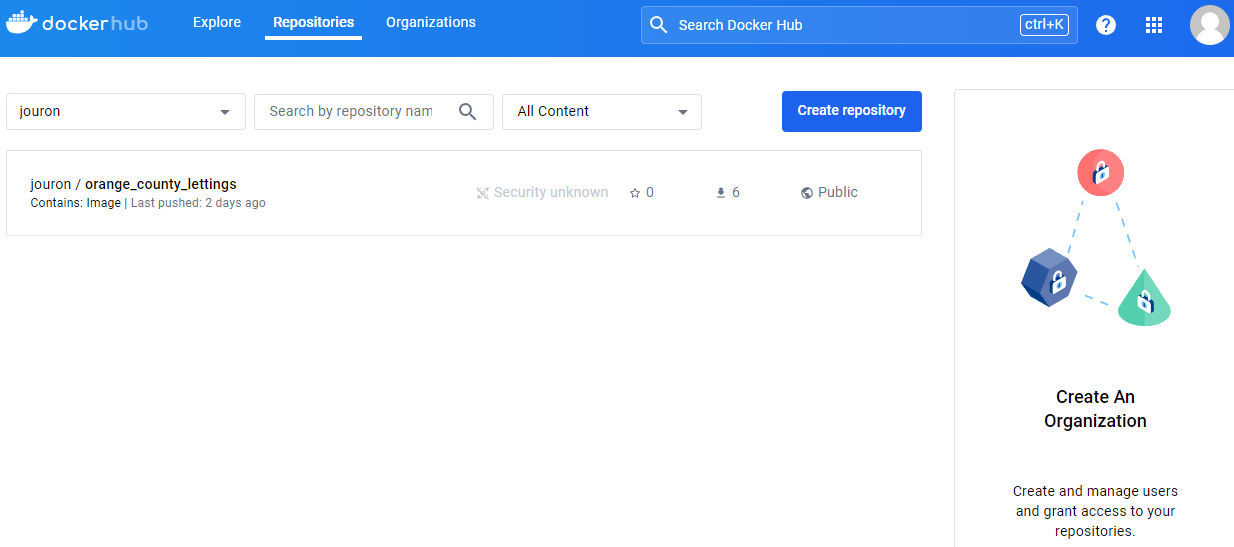
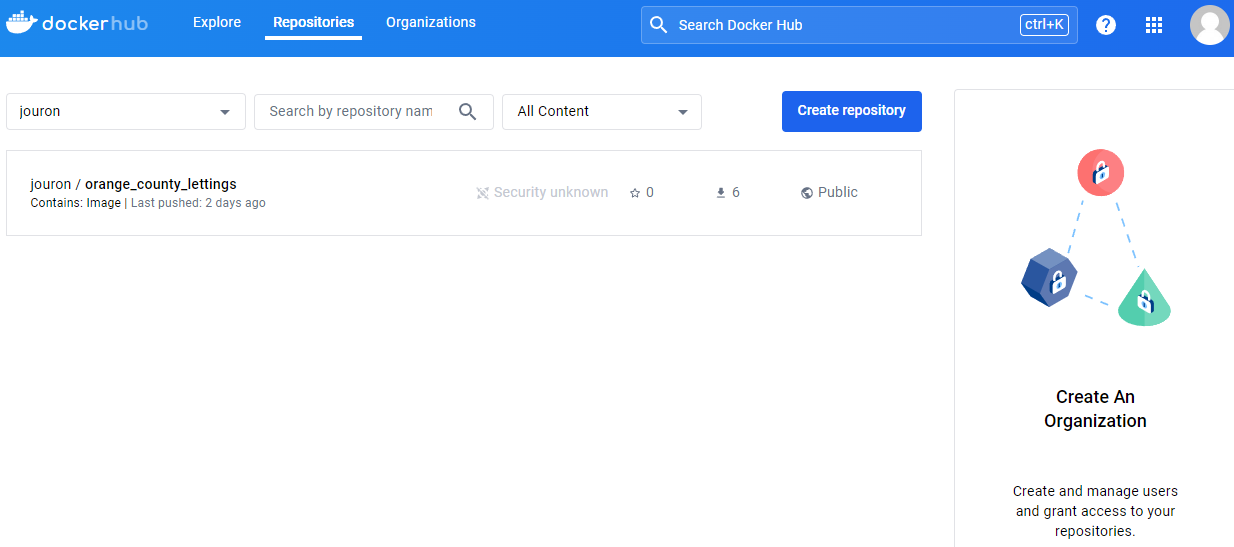
Docker Hub
To launch a container, we need an image.
Docker Hub is the main registry of Docker, it contains many images basic (servers, bones, tools, databases, applications…).
Docker Hub allows you to search for images and see tags available for this image.
Dockerfile for Python
This Docker file is used to build a Python application container.
💡 Pull the official base image
FROM python:3.12.0
💡 Set the working directory inside the container
WORKDIR /usr/src/app
💡 Set environment variables to prevent Python from writing bytecode and buffering stdout and stderr
ENV PYTHONDONTWRITEBYTECODE 1
ENV PYTHONUNBUFFERED 1
💡 Define arguments for setting secret key and DSN (Data Source Name)
ARG SECRET_KEY
ARG DSN
💡 Set environment variables using the provided arguments
ENV SECRET_KEY=${SECRET_KEY}
ENV DSN=${DSN}
💡 Expose port 8000 to the outside world
ENV PORT 8000
EXPOSE 8000
💡 Upgrade pip and copy requirements file to the working directory
RUN pip install --upgrade pip
COPY ./requirements.txt /usr/src/app
RUN pip install -r requirements.txt
💡 Copy the current directory contents into the container at /usr/src/app
COPY . /usr/src/app
💡 Collect static files
RUN python manage.py collectstatic --noinput
💡 Command to run the application using Gunicorn
CMD gunicorn --bind 0.0.0.0:$PORT oc_lettings_site.wsgi
Dockerfile
- FROM
Set the source image
- RUN
Run commands in a container
- ADD
Add files to a container
- WORKDIR
Used to define the working directory
- EXPOSE
Set default listening ports
- VOLUME
Defines usable volumes
- CMD
Set the default command when running your Docker containers.
⚙️ Dockerfile
# Pull the official base image
FROM python:3.12.0

# Set the working directory inside the container
WORKDIR /usr/src/app

# Set environment variables to prevent Python from writing bytecode and buffering stdout and stderr
ENV PYTHONDONTWRITEBYTECODE 1
ENV PYTHONUNBUFFERED 1

# Define arguments for setting secret key and DSN (Data Source Name)
ARG SECRET_KEY
ARG DSN

# Set environment variables using the provided arguments
ENV SECRET_KEY=${SECRET_KEY}
ENV DSN=${DSN}

# Expose port 8000 to the outside world
ENV PORT 8000
EXPOSE 8000

# Upgrade pip and copy requirements file to the working directory
RUN pip install --upgrade pip
COPY ./requirements.txt /usr/src/app
RUN pip install -r requirements.txt

# Copy the current directory contents into the container at /usr/src/app
COPY . /usr/src/app

# Collect static files
RUN python manage.py collectstatic --noinput

# Command to run the application using Gunicorn
CMD gunicorn --bind 0.0.0.0:$PORT oc_lettings_site.wsgi
Build image
⚙️ Perform this command to control the image
docker build -t orange_county_lettings .
⏩️ Launch Docker project
Launch the container in detached mode on a specific port (8000 for example).
docker run -d -p 8000:8000 orange_county_lettings
Docker image


Docker commands
Commands that list all images:
docker images


Commands that list the containers available on the computer:
docker ps


To use this image, download it on Docker Hub.
docker pull jouron/orange_county_lettings
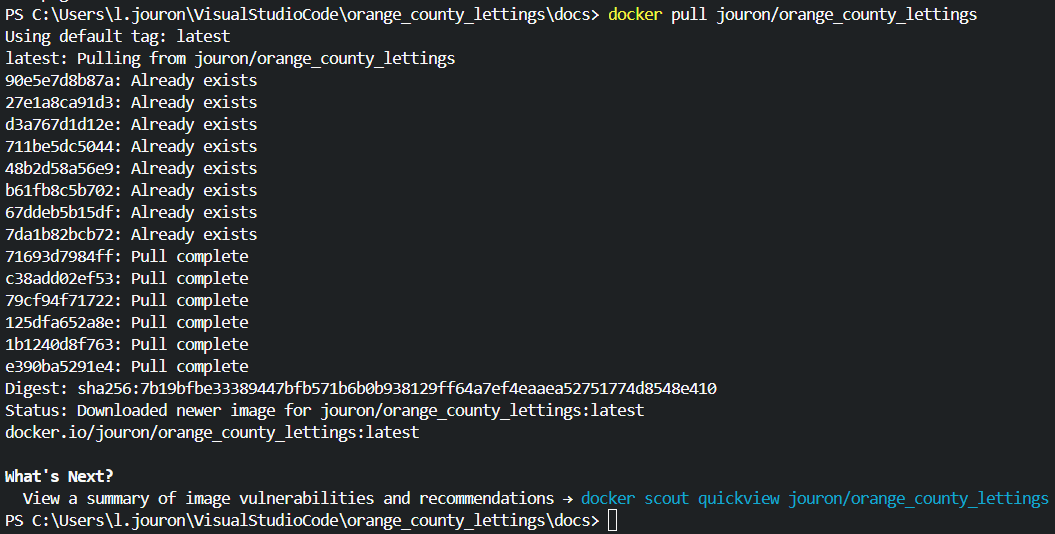
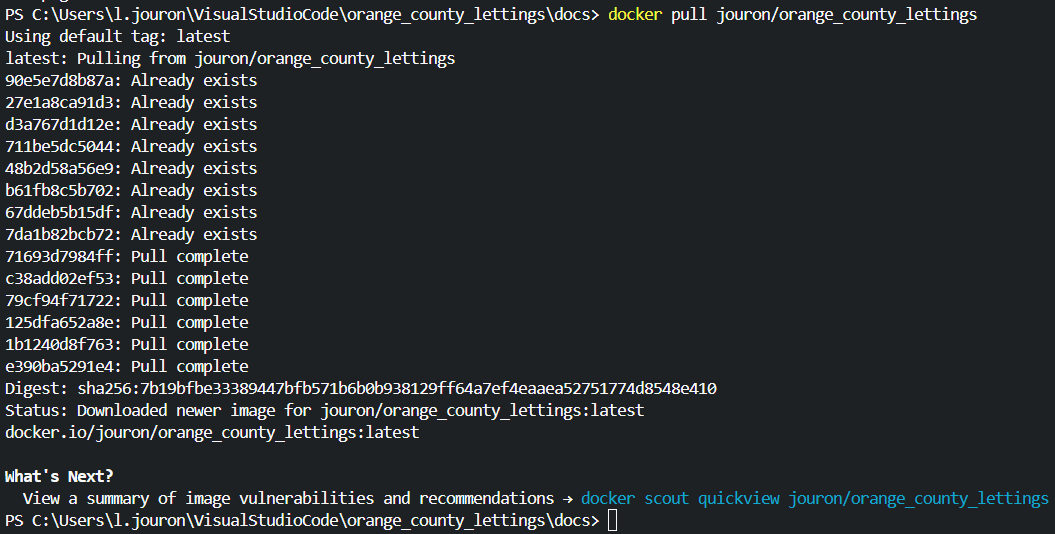
If you relaunch the first command we made, we see the list of images:
docker images


controls to run the image in interactive mode. The local run container.
docker run -it jouron/orange_county_lettings


Commands that list the containers available on the computer
docker ps


Commands to stop a container by adding the ID of it.
docker stop "ID"


Controls to rotate the container in detached (in the background).
docker run -it -d jouron/orange_county_lettings


docker ps
If you re-run the command to see the containers that are running, we see the list of containers.


Commands to stop a container by adding the ID of it.
docker stop "ID"
List container:
docker ps
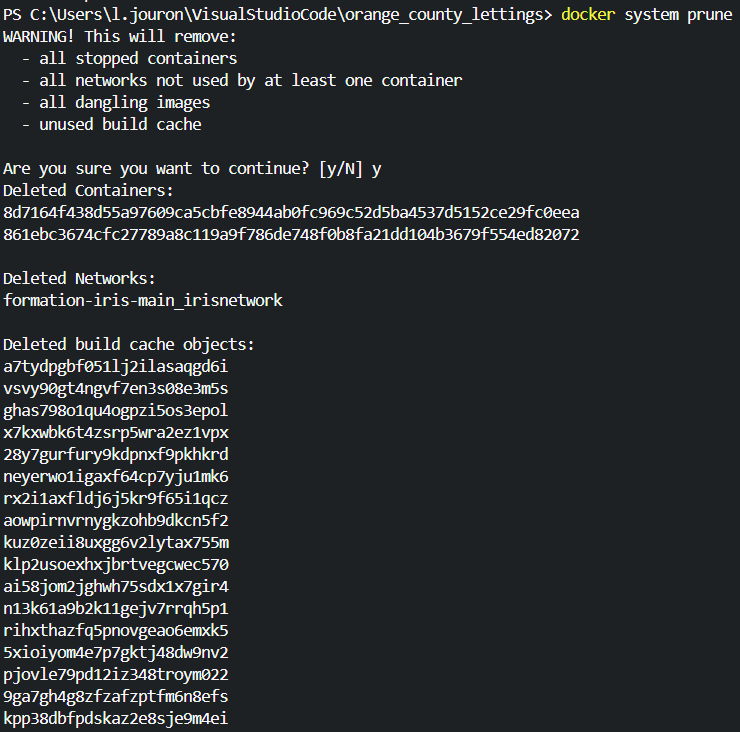
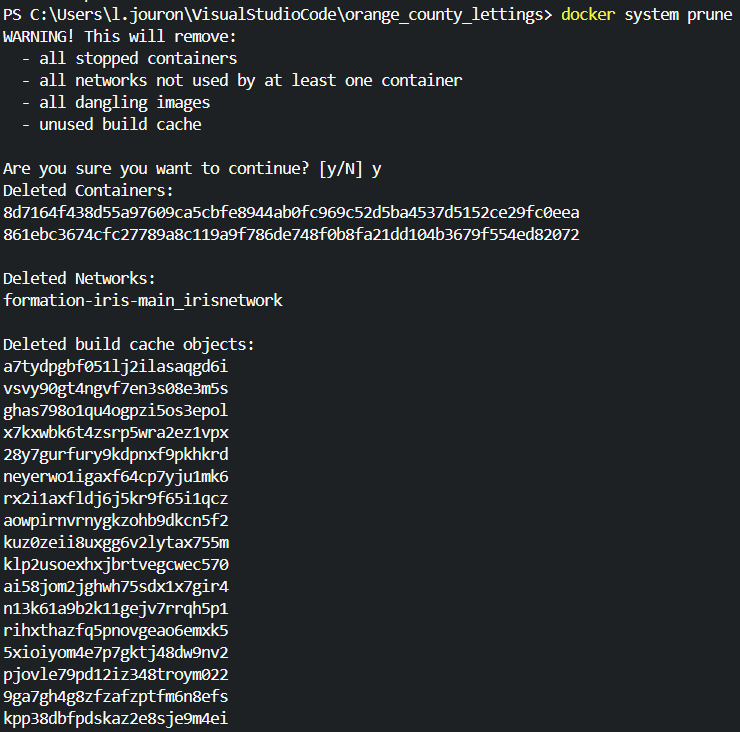
System cleaning controls.
docker system prune
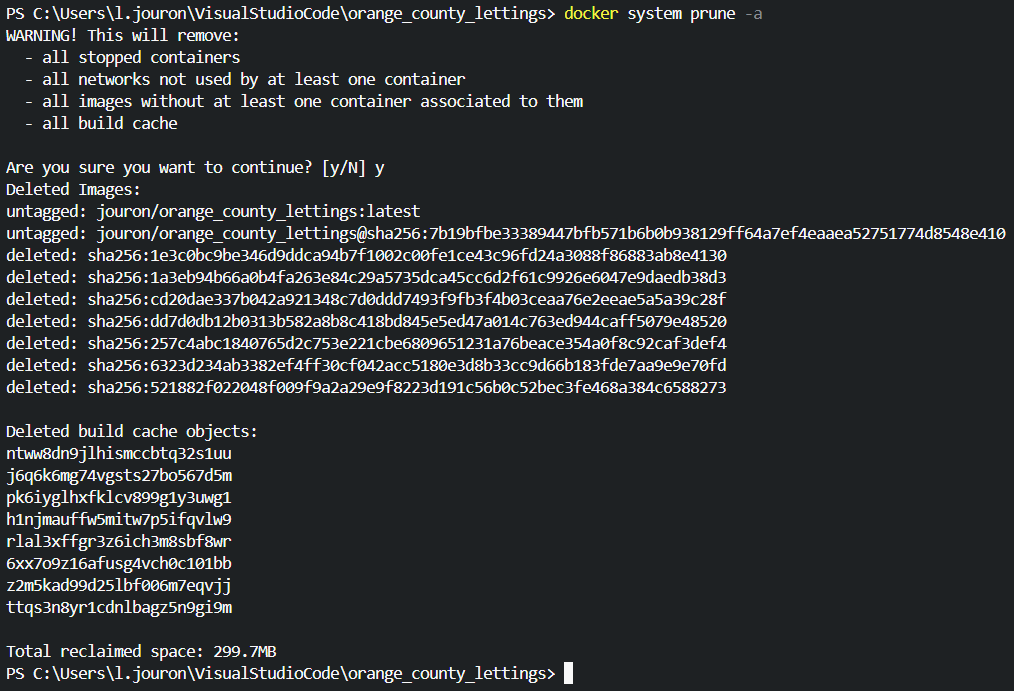
Command to delete images (caution suppresion without possibility of return).
docker system prune -a
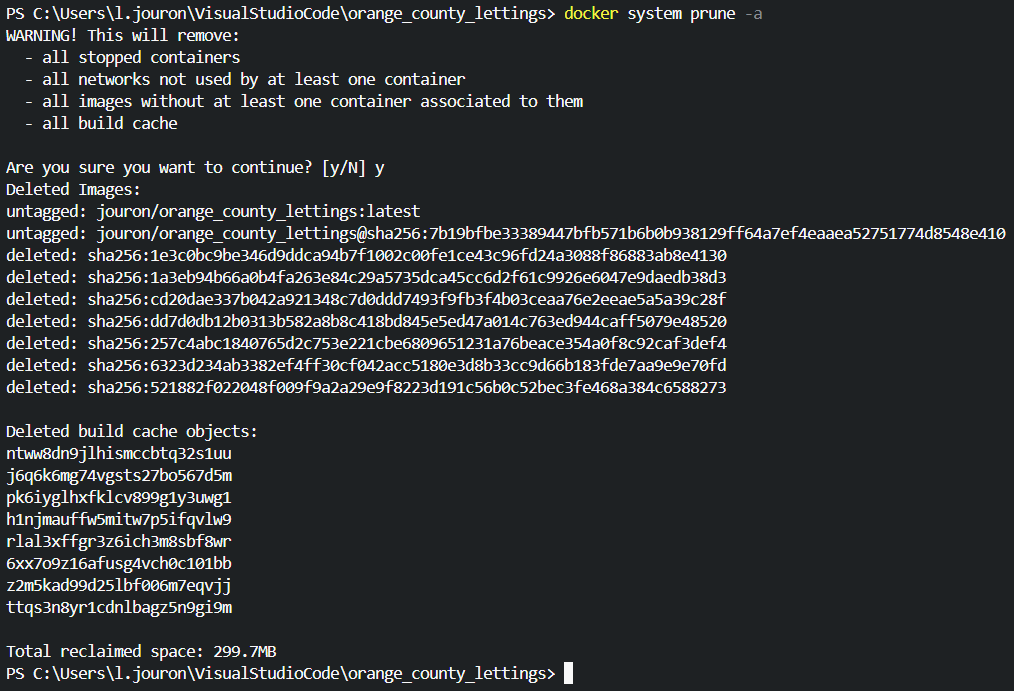
Link our previously created orange_county_lettings:latest image to the Docker Hub jouron/orange_county_lettings:latest
docker tag orange_county_lettings:latest jouron/orange_county_lettings:latest
Run a final command to send the image to the Docker Hub.
docker push jouron/orange_county_lettings:latest
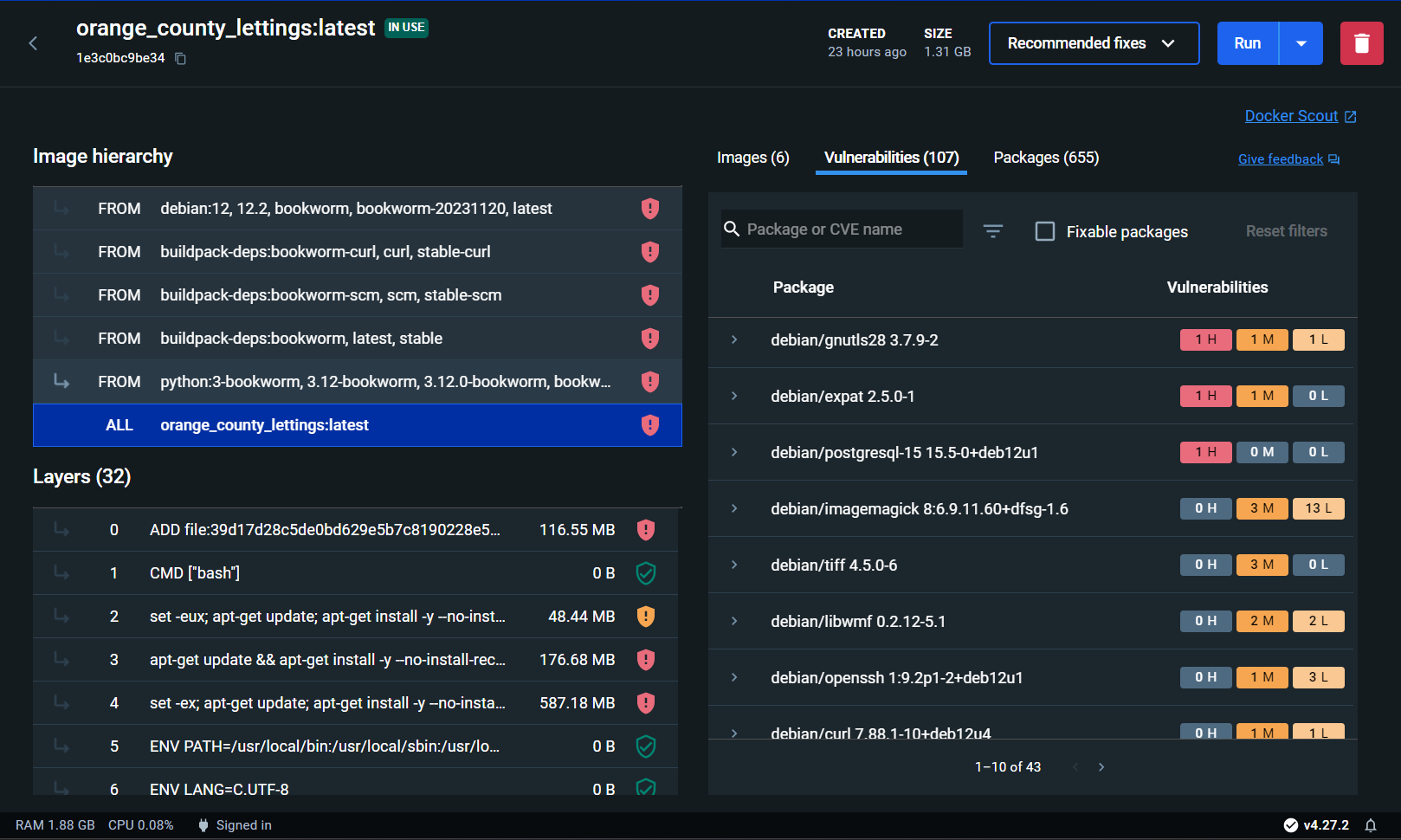
Docker image details
Quit container
🔚 Quit
To stop the server, press
ctrl + c
(SIGNIT signal)
Deployed image